
Save backup
A memory card can fail. Tetsu OS can keep a copy of your saves elsewhere in two ways: continuously with Syncthing, or by hand as a ZIP from the WI-FI TRANSFER page.
What is backed up
Saves, save states, resume points, play time, per-game settings, core options, cheat choices, screenshots, settings, favorites, collections, hidden games, recent games and the play log.
Not included: the games themselves, covers, Wi-Fi passwords and the RetroAchievements login. Covers can be downloaded again; games you copy back yourself.
Syncthing
Syncthing keeps folders in step between devices over your own network, with no cloud account. Install it on a PC, phone (Android) or home server first.
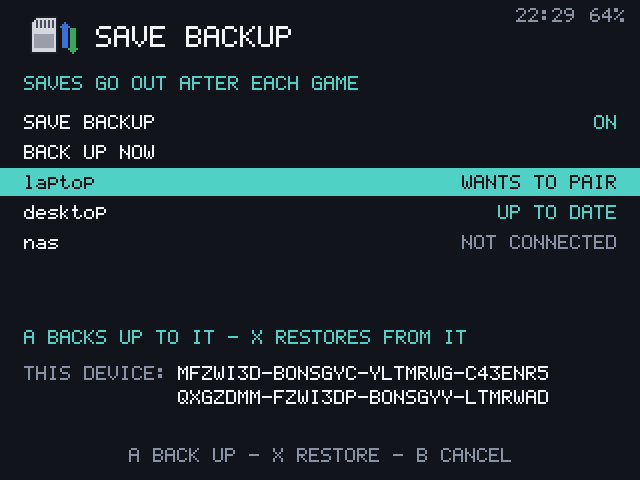
Setting it up
- Turn on Settings > DATA > SAVE BACKUP. The device's Syncthing ID shows at the bottom of the screen.
- In Syncthing on your computer, Add Remote Device and type that ID.
- On the handheld, the computer shows as WANTS TO PAIR. Press A, then A again.
- Accept the shared folder on the computer. The screen shows SENDING and then UP TO DATE.
From then on, saves are sent after each game. BACK UP NOW sends changes at once.
Turn on file versioning
The handheld only sends; it never takes changes from the computer. Deleting a game on the handheld deletes its saves from the backup too. Turn on File Versioning for the folder in Syncthing on the computer to keep what the handheld deletes.
Syncthing pauses while you play, so it never takes time from a game, and stops during USB STORAGE.
Restoring to a new card
- Install Tetsu OS on the new card and join Wi-Fi.
- Turn on SAVE BACKUP. The new card has a new ID: add it in Syncthing on the computer and share the same folder with it.
- On the handheld, choose the computer under WANTS TO PAIR and press A, then X to restore.
The card's own files are set aside, everything from the backup comes in, and the launcher starts again with your settings and lists. B twice stops a restore and puts the files back.
X dismisses a pairing request, and X twice unpairs a device.
A backup ZIP
On the WI-FI TRANSFER page, the Backup card has:
- Download backup: the whole set as one ZIP, named with the hostname and date.
- Restore from a backup: choose such a ZIP. Each file in it replaces the one on the card; files the ZIP doesn't have are left alone.
Leaving the screen after a restore starts the launcher again.