
The launcher
The home screen
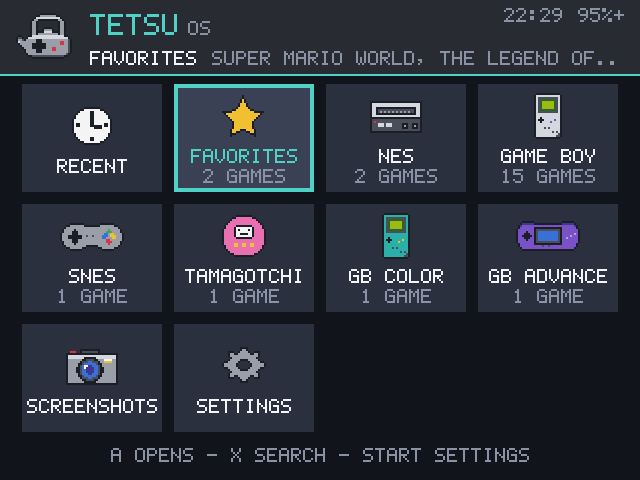
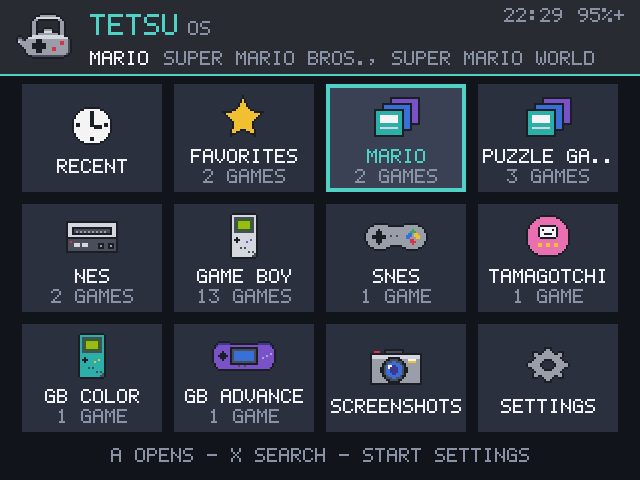
The home screen is a grid of tiles: RECENT (the last 8 games played), FAVORITES, your own collections, one tile per console with games, SCREENSHOTS while there are any, and SETTINGS. Each tile shows how many games it holds. The header shows the title, the games of the selected tile, and the clock and battery in the corner, with Wi-Fi and Bluetooth icons while connected.
Game lists
A console opens its list of games, with the selected game's cover on the right. Long names scroll. Hold Up or Down to scroll, Left and Right to page, and L1 and R1 to jump by letter.
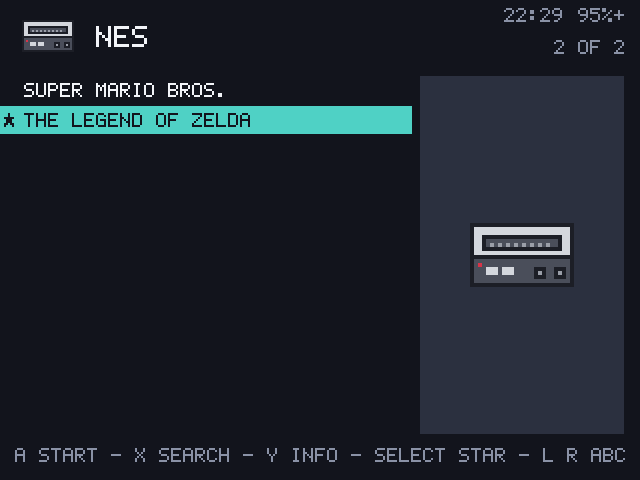
Names are shortened by default (no region tags); Settings > THEME > GAME NAMES > FULL shows file names with their tags. SORT GAMES BY chooses NAME, RECENTLY PLAYED or MOST PLAYED. Settings > BOX ART > COVERS IN LISTS > OFF gives names the whole width.
Search
X on the home screen or in a list opens the keyboard and shows how many games match as you type. A game matches when every typed word is in its name, in any order, ignoring case and accents. It searches every console, even those with a hidden tile.
A game's details
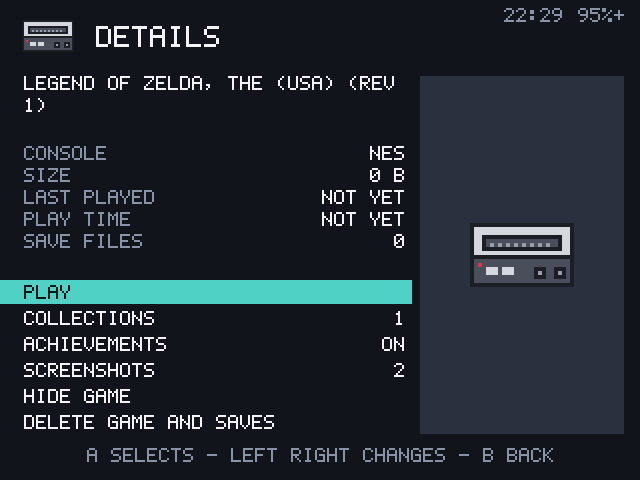
Y on a game opens its details: the file name, console, size, when it was last played, play time and how many save files it has, with these rows:
- PLAY
- COLLECTIONS: put the game in FAVORITES or any collection, or make a new one
- ACHIEVEMENTS: on or off for this game
- SCREENSHOTS: this game's screenshots, if it has any
- HIDE GAME: keep it off every list. Settings > DATA > HIDDEN GAMES shows it again
- DELETE GAME AND SAVES: A twice. Removes the game, every save, state and setting of it, its cover and its place in lists. There is no undo
Favorites and collections
Select stars a game in any list, and starred games are listed under FAVORITES.
Collections are your own lists beside FAVORITES. Make one from a game's details (COLLECTIONS > NEW COLLECTION), and add more games the same way. Each collection gets its own tile. Settings > DATA > COLLECTIONS renames (A) and deletes (X twice) them; deleting a collection leaves its games on the card.
Screenshots
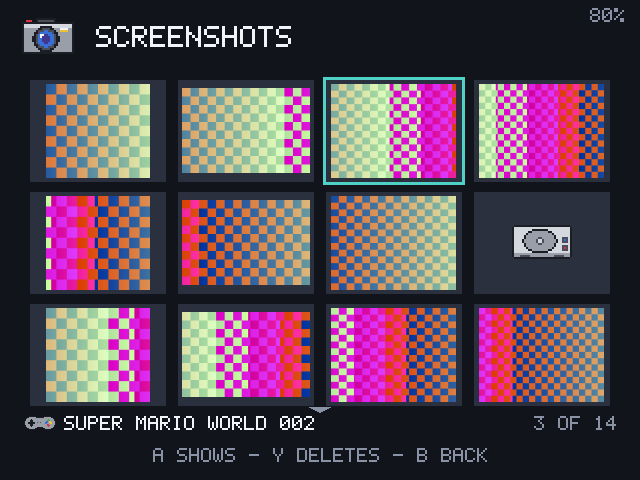
The SCREENSHOTS tile opens every picture taken with the in-game menu's SCREENSHOT, newest first. A shows one large, Left and Right step through them, and Y then A deletes one. The pictures are PNG files in screenshots on TETSU-DATA, at the game's own size.
Play statistics
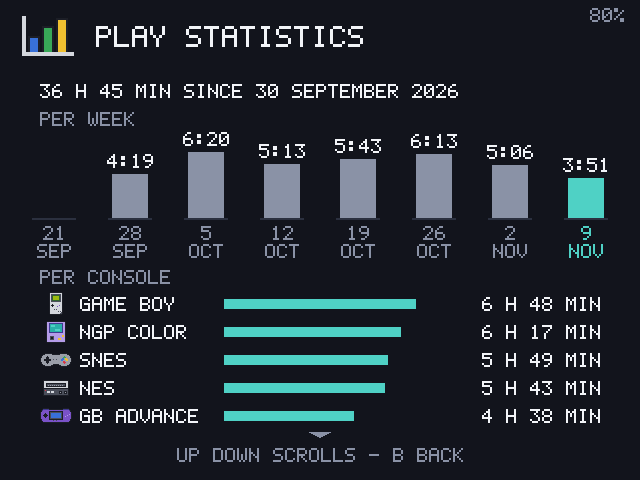
Settings > STATISTICS shows your total play time, the last 8 weeks as bars, and the time per console. It counts from 2026-11-11, when the log started; older play isn't in it.
Making it yours
Settings > THEME changes the look:
| Setting | Choices |
|---|---|
| COLOR | 9 accent colours |
| BACKGROUND | DARK, BLACK or TINT (a shade of the accent) |
| TITLE / TITLE TEXT | Show or hide the title, and type your own |
| GRID SIZE | NORMAL (4 to a row) or LARGE (3 to a row, bigger icons) |
| HOME SCREEN TILES | Hide any tile, console or collection |
| START SCREEN | HOME, RECENT, FAVORITES or LAST GAME |
| GAME NAMES | SHORT or FULL |
| SORT GAMES BY | NAME, RECENTLY PLAYED or MOST PLAYED |
Settings > GENERAL has MENU SOUNDS and the BOOT JINGLE.